How to register on the Pocket Option exchange
This step-by-step guide will help you quickly and correctly register on Pocket Option, verify your identity, and prepare your account for binary options trading. We explain in simple terms and show the entire sequence of actions with detailed examples.
You can also watch a detailed video tutorial on registration on the exchange:
Binary options are a tool where you earn from the price change of a chosen asset (currencies, stocks, cryptocurrencies, or commodities) by opening trades in the directions BUY (higher) or SELL (lower) for a set time. To get started, it’s important to correctly create and configure your account.
- Official quick access — POCKET OPTION
- Alternative — go to the project’s homepage PO-SIGNALS.COM and complete quick registration via the Telegram bot.
- Delete the old one (if you had it). This is a requirement of the exchange rules.
- Right after deletion you can register a new account.
- How to delete — read the instructions below in the text.
Registration on Pocket Option
Step 1. Enter your Email
Enter your email address that has not been used before to register on Pocket Option.
Step 2. Create a password
Make it strong and write it down so you do not lose access in the future.
Step 3. Enter the promo code
Enter the promo code MDTRADE. It helps you correctly complete registration in the desired team, it does not affect deposits or further operations.
Step 4. Accept the agreement
Check the box “I have read and accepted the agreement”.
Step 5. Click “Register”
After confirming the data you will enter the Pocket Broker terminal and see a welcome window.
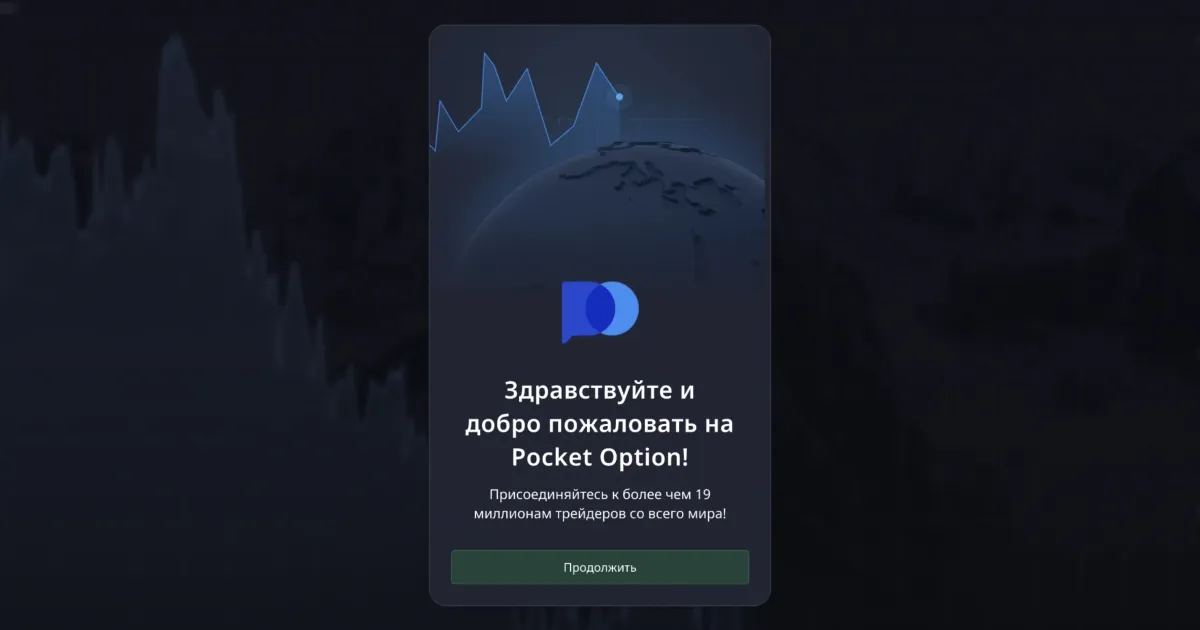
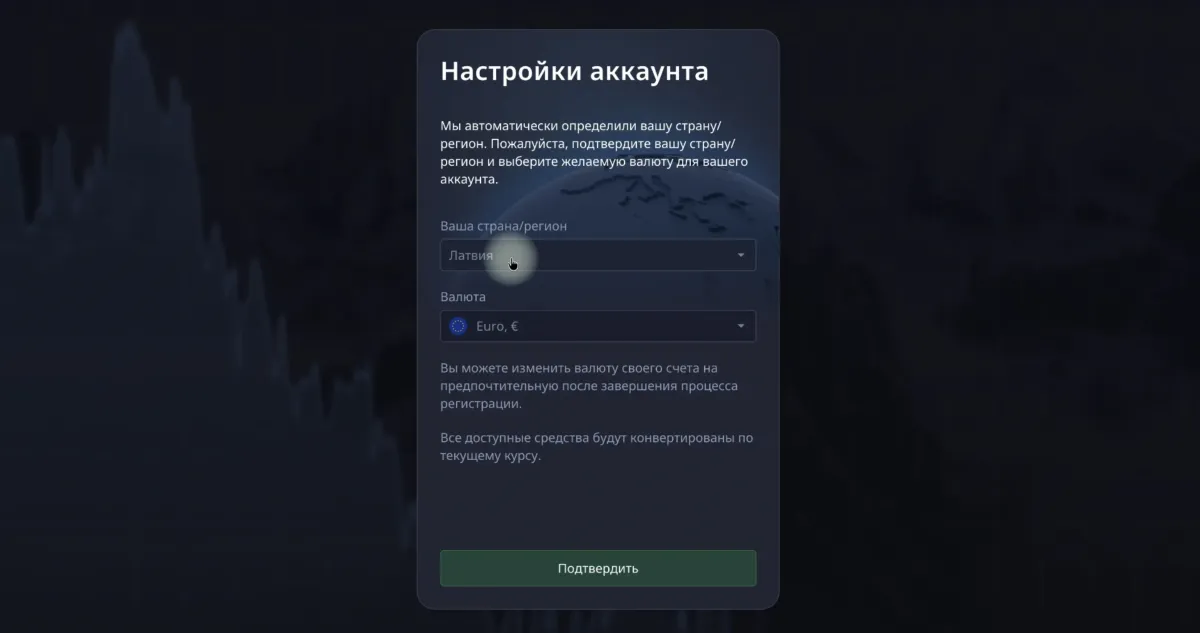
Next click “Continue” to proceed to choosing your country and account currency.
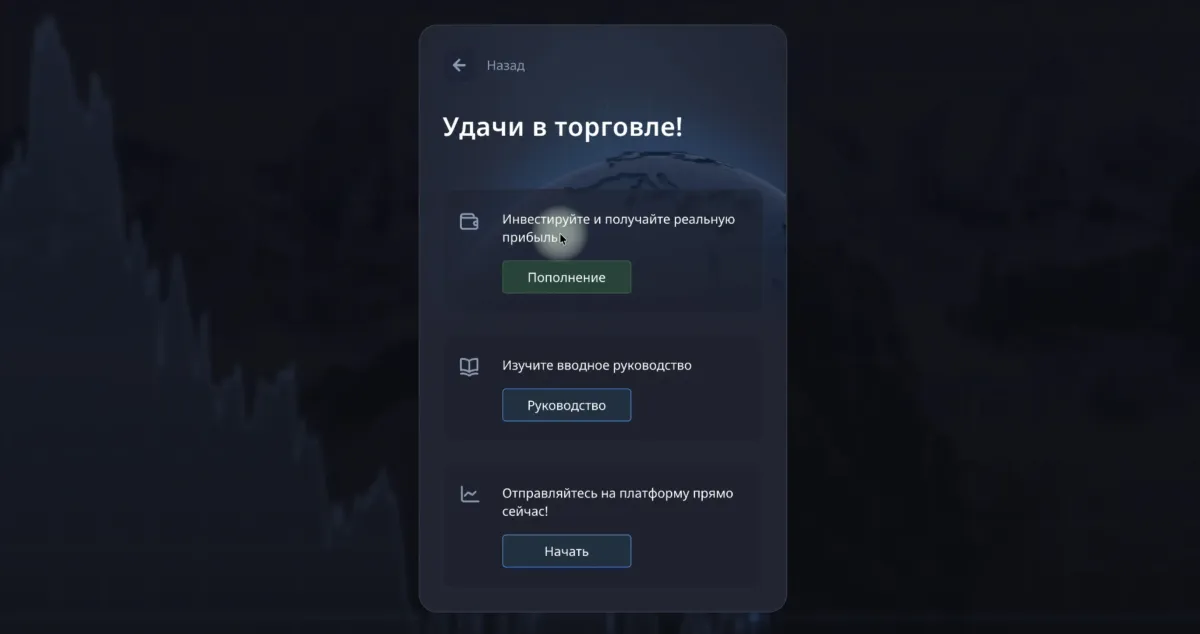
In the new window it’s enough to click “Start” — we will do the rest of the setup later in the profile.
Profile verification
Verification is a standard procedure on any exchange (options, crypto, forex). It protects your account and funds, and also helps the platform comply with legal requirements and prevent fraud.
Open the profile menu: click on your avatar and select “Profile”.
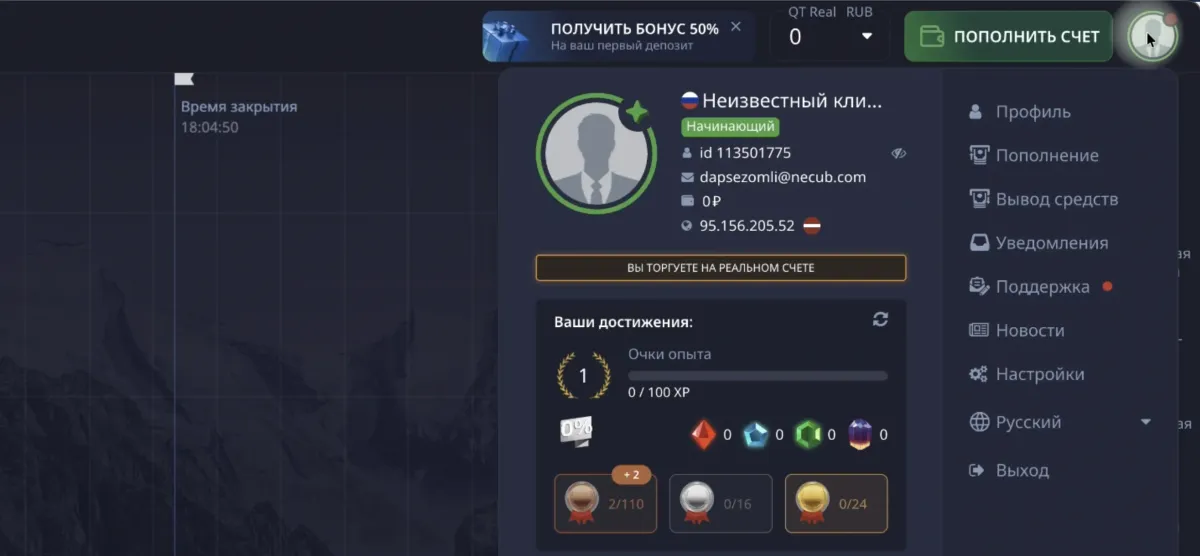
You will be asked to confirm your email
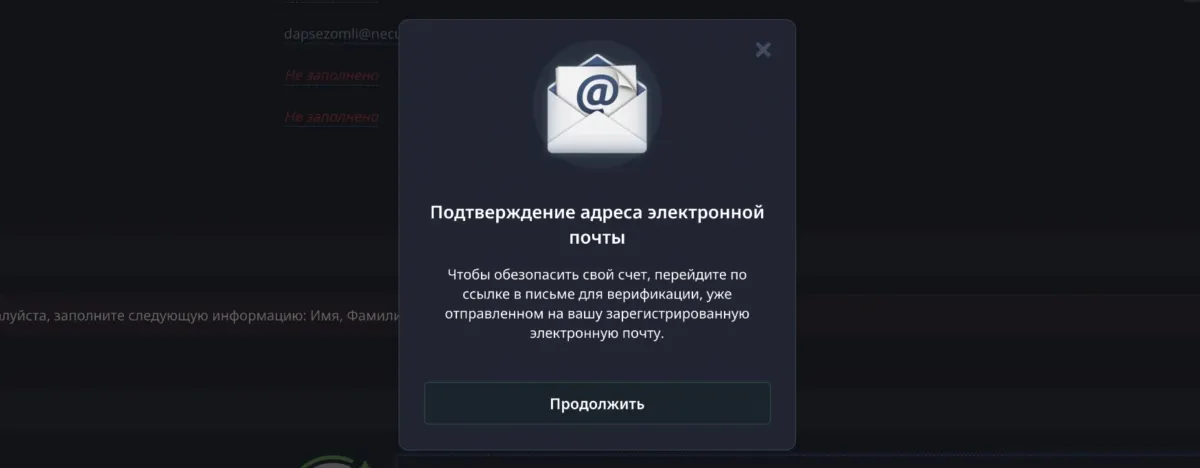
- Click “Continue”.
- An email with a confirmation link will be sent to the specified address.
- Follow the link from the email.
- Done — the address is confirmed.
After confirmation you will see the status next to the email — “Verified”.
Filling out the profile
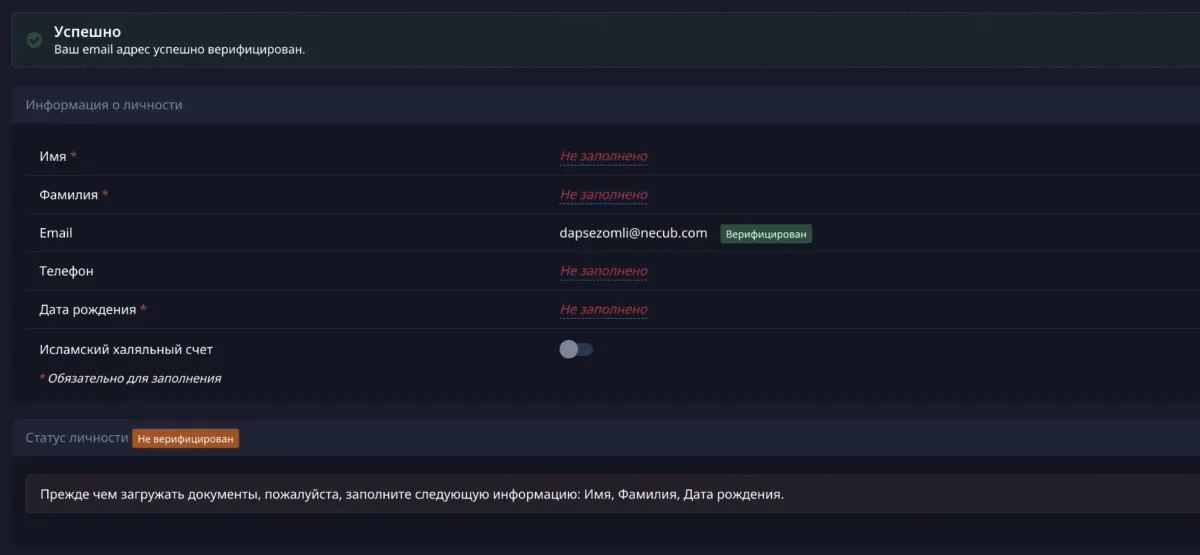
Fill in the fields marked as “Not filled”:
- First name
- Last name
- Phone (enter your current number, even if you recently deleted an old account)
- Date of birth
After filling out the form, identity verification becomes available.
Identity verification (KYC)
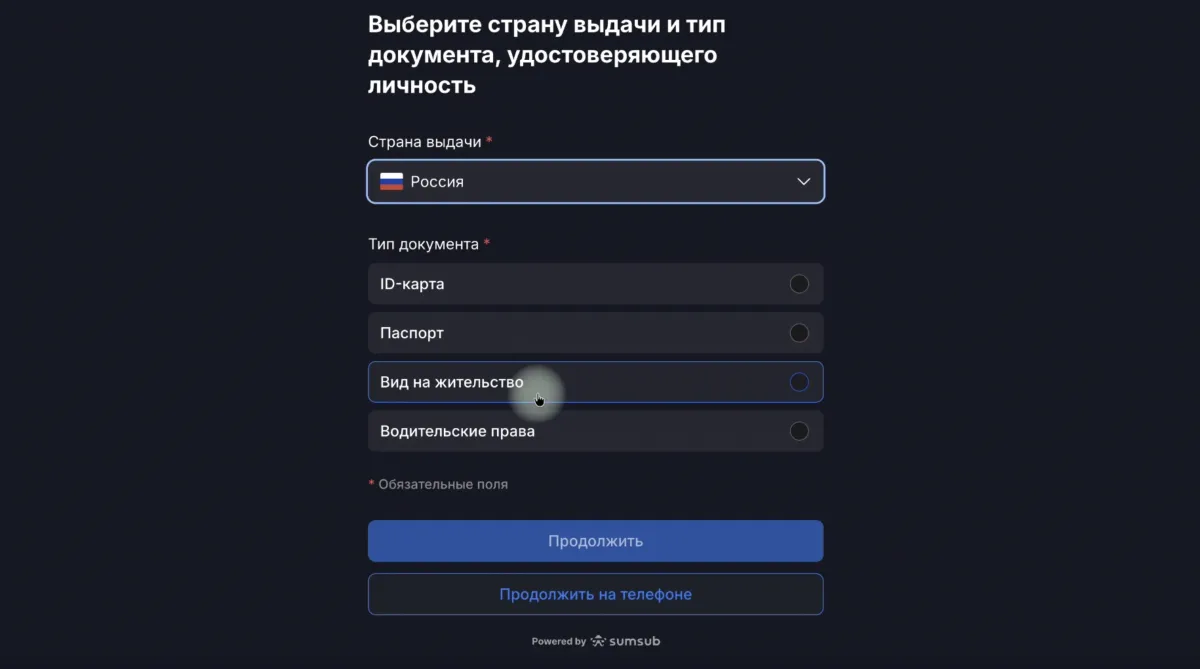
Specify the country
Select your country of residence exactly as in your documents.
Give consent
Confirm consent to the processing of personal data.
Choose a document
Usually a passport, ID card, or driver’s license is accepted.
Choose how to continue
Continue in the browser or on your phone.
- We recommend the phone — it’s more convenient to take quality photos of the document and your face.
Scan the QR code
Or open the link on your smartphone and follow the on-screen instructions.
After the checks are completed, the identity status in the “Profile” section will display — “Verified”. At this point, the registration and KYC process can be considered complete.

Deleting an account — if you were previously registered
Sometimes you need to delete the old account to correctly register again and join a new team.
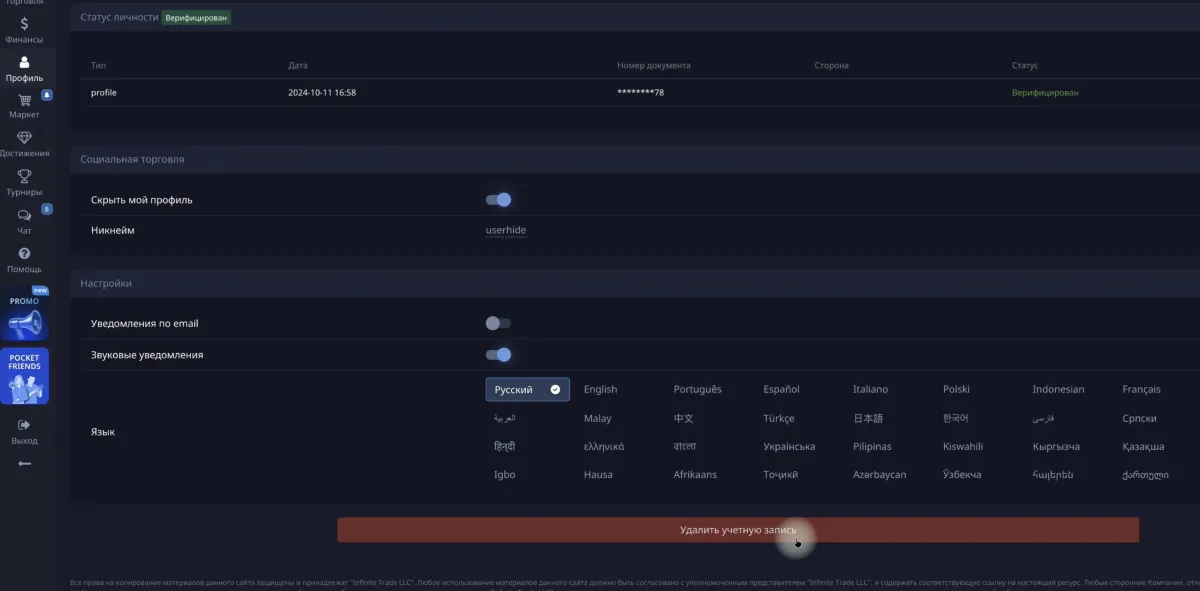
Step 1. Open “Profile”
Scroll the page all the way down.
Step 2. Click “Delete account”
Follow the on-screen instructions.
Step 3. Specify the reason
Select: “I want to close the account to open another one via a partner link”.
Step 4. Log out of the account
Complete the deletion and go through the process of new registration via the link to POCKET OPTION.
Starting on demo and connecting to the team
After registration and verification, we recommend starting with a Demo account to calmly get used to the interface and test basic strategies.
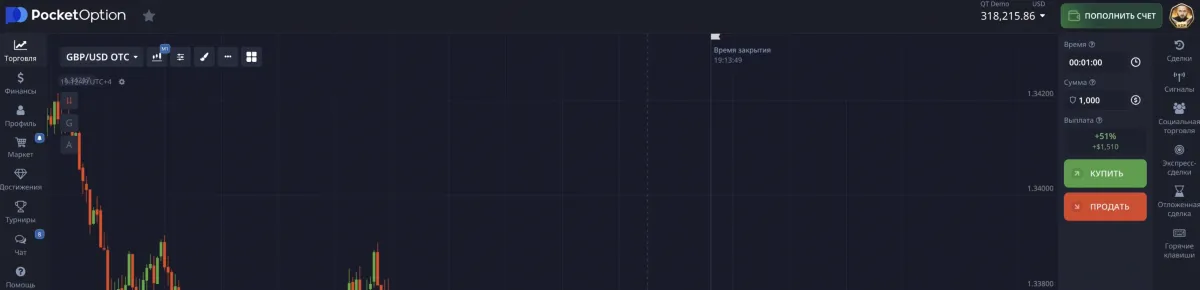
To join our team and get access to analytics, signals, and educational materials, go to the Telegram bot via the project’s homepage: PO-SIGNALS.COM.
Inside the bot, go through a short flow to get access. It will take no more than 10 minutes.
Frequently asked questions
Sometimes when registering via Google the account is linked to the wrong team. This leads to the need to delete and re-register. It’s simpler to go directly via a link and with a regular email+password.
Check the “Spam” and “Promotions” folders. If it is not there either — request a resend and make sure the address is entered without errors.
Yes, for full operation and withdrawals the exchange requires identity verification. This is standard practice for financial platforms.
Yes. Topping up after registration speeds up access to the team’s closed materials and tools, but we recommend starting trading with a demo.
Short action plan
- Register a new account using the correct link
- Verify your email and create a strong password
- Enter the promo code MDTRADE (you can remove it later, it’s only important for registration)
- Confirm your email and fill out your profile
- First name, last name, phone, date of birth
- Complete identity verification
- Prepare documents and complete the KYC steps
- Start with a demo account
- Learn the interface, test basic signals
- Connect to the team via the bot
- Get access to analytics and educational materials
How to top up your Pocket Option deposit with cryptocurrency via BingX
Step-by-step guide to safely topping up your Pocket Option deposit from the BingX exchange: choosing the method, transferring USDT on the TRC20 network, checking the transaction, and important nuances.
Creating Oscillators for Spectra Charts in a Separate Panel Below the Price
A step-by-step guide on how to train GPT to create oscillators in the lower panel of Spectra Charts and use them for binary-options trading on Pocket Option.